Build a small set of reliable shortcuts for document editing, searching, formatting and spreadsheet work. This tutorial focuses on a repeatable real-world task you can test on a sample file, not an unverified performance claim. LibreOffice is a desktop office suite; application menus and options may differ by operating system and release.
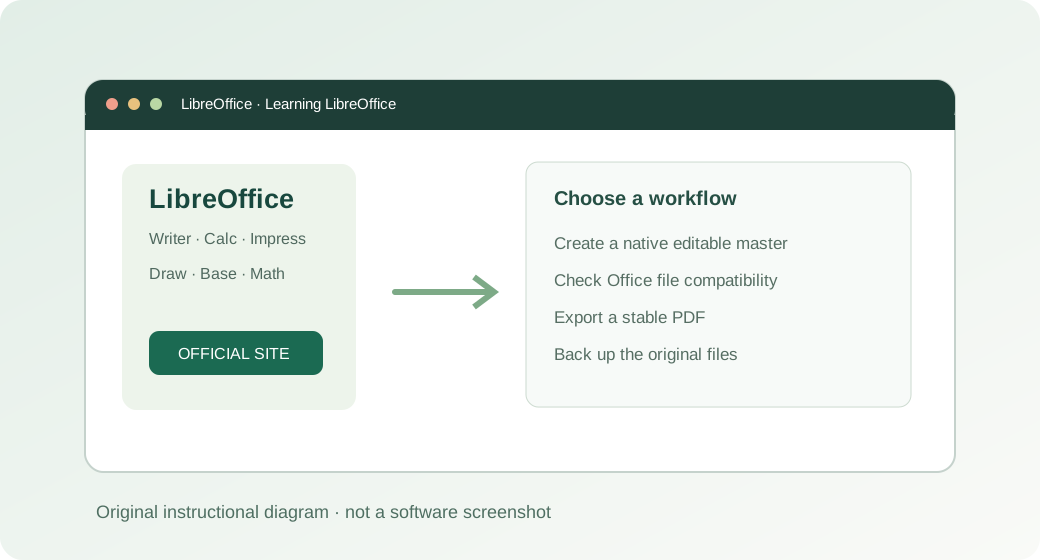
How to do it: a practical workflow
Work on a copy of your files when learning a new application. The sequence below gives you a testable outcome and a way to verify the result.
- Step 1. Learn universal navigation and file actions first: saving, undoing, searching, and moving through the document.
- Step 2. In Writer, use paragraph styles instead of repeatedly formatting headings manually; keyboard access to styles may vary by configured shortcut.
- Step 3. In Calc, practice navigating between cells and editing a formula directly in the selected cell.
- Step 4. Open the application’s shortcut customization settings if a shortcut conflicts with your operating system or keyboard layout.
- Step 5. Create a one-page reference with only actions you repeat several times a day.
Worked example you can recreate
Try a ten-minute editing exercise: rename a report, find every mention of “June”, fix two headings, save, and export a PDF. Record which keyboard operations actually reduced mouse work.
Common problems and what to verify
Shortcuts differ across platforms and can be customized. Validate them in the LibreOffice version and operating system you use.
Before handing a document to someone else, open the output in the format that person will use. Check the content and key calculations rather than relying on an export-success notification.
Quick answer
Are Word and LibreOffice shortcuts identical?
Many common editing shortcuts are familiar, but not every shortcut matches across products or operating systems.
Official reference and download
These instructions draw on documentation from The Document Foundation. For current user-interface details, refer to the official guide for this topic ↗. Download installation files only from LibreOffice's official download page ↗.
Keep learning
Each of these related guides answers a different task, so you can move from basic setup to a more specific workflow without repeating the same overview.
Independent educational coverage. Trebuchet is not affiliated with or endorsed by The Document Foundation. This article describes documented workflows and illustrative examples; it is not a report of hands-on benchmarking or testing.