PDF24 Creator Review: Useful PDF Tools That Work Offline
Merge, split, compress, and print to PDF on Windows, with a local workflow for sensitive documents.
By Trebuchet Editorial Desk··6 min read
Original editorial artwork for Trebuchet. This is an illustration, not a screenshot of the software.
PDF24 Creator belongs to a category of desktop tools that can handle useful everyday jobs without an ongoing subscription. The central question is not just whether it is free, but whether its workflow fits what you want to accomplish.
This editorial overview uses published product documentation and publicly available feature information. It is not a hands-on benchmark or security audit; readers should check current system requirements and product updates with the publisher.
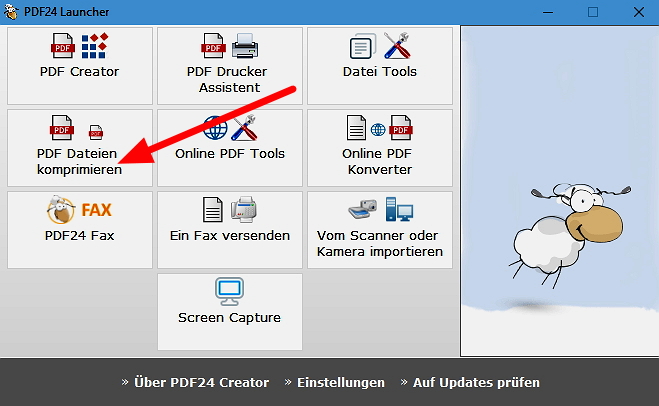
Interface reference · View source and context. Screenshot may show an older version; interface details can change.
Who is PDF24 Creator for?
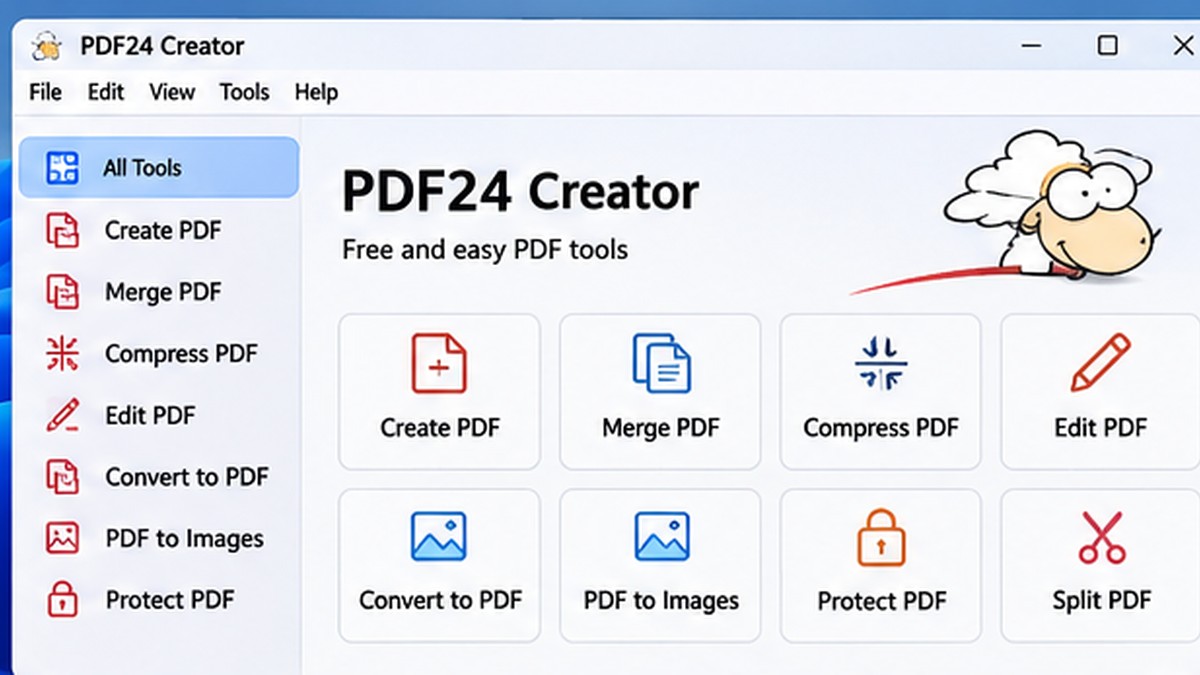
Editorial interface illustration (AI-generated); appearance may differ from current software versions.
Home offices, students, and small teams dealing with PDFs daily. It is worth listing the tasks you repeat each week before picking an application: an impressive feature list is less valuable than a tool that solves your recurring problem reliably.
Where it stands out
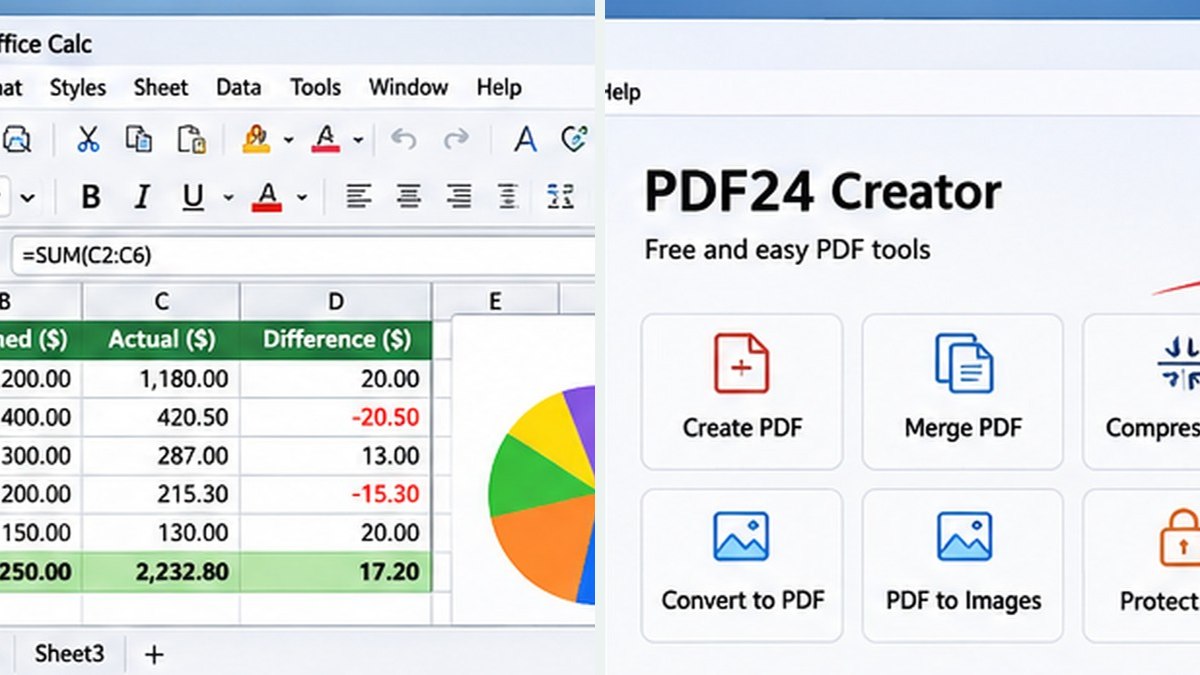
Editorial interface illustration (AI-generated); appearance may differ from current software versions.
Includes many common PDF operations
Offline desktop workflow on Windows
Free for private and commercial use
These capabilities make the software worth considering, but the right fit depends on your files, device, experience, and tolerance for setup. Where possible, try a small sample project before moving important work into a new application.
Tradeoffs to know
Its broad toolbox can feel overwhelming at first
Some advanced document workflows need dedicated tools
No free desktop tool is automatically the best choice for every user. Compatibility, documentation, backup options, and continued project maintenance matter as much as its headline features.
A sensible first-use checklist
Try combining two non-sensitive sample PDFs, then use the PDF printer from an everyday application. Keep backups of originals before compressing or rearranging important documents.
Installation safety: use the publisher’s official website, verify the publisher and installer details, keep Windows protection enabled, and avoid unexpected download mirrors or bundled offers.
Our editorial verdict
PDF24 Creator is worth evaluating if offline PDF utilities matter more than a polished single-purpose interface.
PDF24 Creator focuses on practical Windows workflows such as combining, separating, and compressing PDFs locally. If you are evaluating free PDF software for Windows, check whether your task needs a desktop app or can be completed with operating-system features already available.
A closer look: how this fits into everyday work
Features make more sense when you connect them to a familiar task. The following examples focus on ordinary desktop workflows, common points of confusion, and the decisions that are easy to overlook when reading a list of specifications.
The PDF problem that happens every day
Someone sends you three scans and asks for one document. Or a form is split across several files, and you need to reorder the pages before emailing it to a client. PDF24 Creator is designed for practical tasks like those, with desktop tools for common PDF operations.
It is worth separating the local Windows application from PDF24's online web tools. The distinction matters when documents contain personal or confidential information: check which workflow you are using and your organization's handling requirements before uploading anything to a third-party service.
A simple document workflow
Create a practice folder with several non-sensitive PDFs. Combine two files, rearrange the pages and save the result under a new name. Open the finished PDF in a different viewer to check page order, orientation and whether any information was cropped.
This sounds almost too basic to mention, but checking the output is crucial. A PDF can appear fine in a thumbnail view and still contain unreadable pages, missing fonts or an accidental blank page.
Reader tip: menus, screenshots and exact settings may change between software versions. Check the publisher’s documentation before following a step that affects important files.
Compression does not fix every document
Making a PDF smaller is useful for email attachments and upload limits. However, aggressive compression may damage image quality, especially if the document consists mainly of scanned pages. Compare the original and compressed file at normal reading size before replacing anything.
Text-heavy PDFs and image-heavy PDFs behave differently. If the file is mostly photos, a large reduction may involve visible trade-offs. Keep the original when a document is important.
What an editor cannot promise
Moving pages, merging PDFs and adding annotations are not the same as fully editing the underlying text in every PDF. Scanned documents may require OCR or another workflow before text becomes searchable or editable.
Use a few representative files to confirm your actual needs instead of assuming that every function labeled 'edit' changes PDFs in the same way.
Before you commit important work
Make a small test project with files that are safe to experiment on. Confirm that the result opens, that you understand where it was saved, and that a backup exists for anything irreplaceable. Even popular software can behave differently across Windows versions, hardware configurations and file formats.
Also consider who will receive the result. A technically impressive export is not helpful if a collaborator cannot open it, the text is unreadable or the accounting report does not match the source records. Choose settings and formats with the end user in mind rather than treating the default option as universally correct.
Finally, use the official publisher website for current downloads, release notes and system requirements. This journal links to publishers and reviews software workflows; it does not distribute installers or claim that the applications were benchmarked in our lab.
Editorial disclosure: this is an independent informational article. Trebuchet is not affiliated with PDF24 Creator. We do not host installers or claim endorsement from the publisher. No hands-on testing is asserted.