LibreOffice Review: A Full Office Suite Without a Subscription
What Writer, Calc, and Impress can cover, plus what to check before switching from Microsoft Office.
By Trebuchet Editorial Desk··6 min read
Original editorial artwork for Trebuchet. This is an illustration, not a screenshot of the software.
LibreOffice belongs to a category of desktop tools that can handle useful everyday jobs without an ongoing subscription. The central question is not just whether it is free, but whether its workflow fits what you want to accomplish.
This editorial overview uses published product documentation and publicly available feature information. It is not a hands-on benchmark or security audit; readers should check current system requirements and product updates with the publisher.
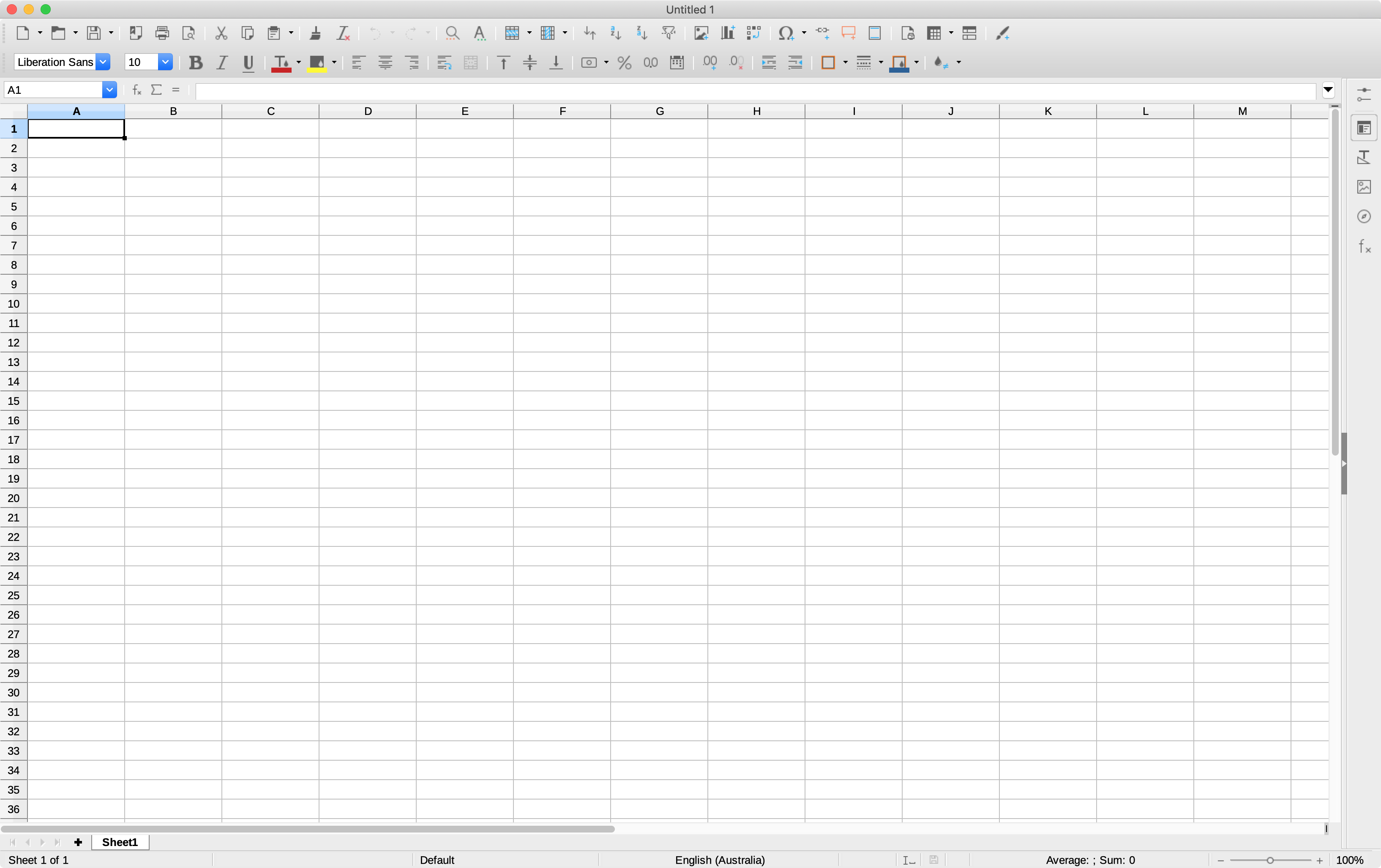
Interface reference · View source and context. Screenshot may show an older version; interface details can change.
Who is LibreOffice for?
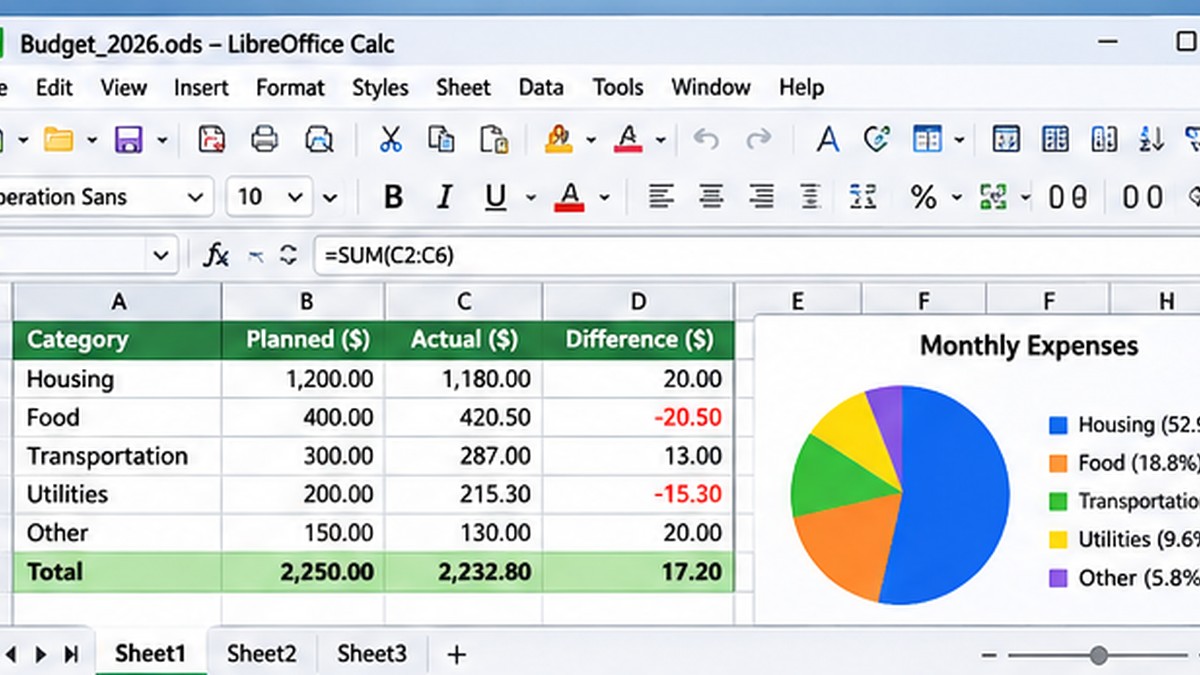
Editorial interface illustration (AI-generated); appearance may differ from current software versions.
Students, households, and small teams that work primarily with standard documents. It is worth listing the tasks you repeat each week before picking an application: an impressive feature list is less valuable than a tool that solves your recurring problem reliably.
Where it stands out
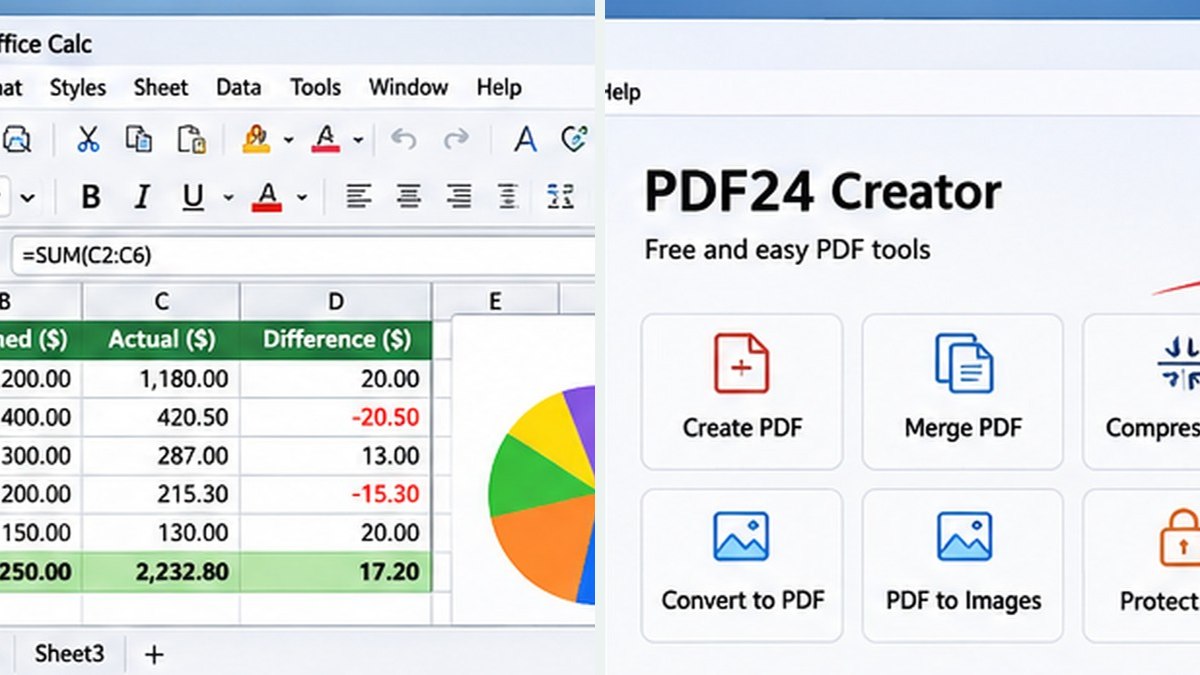
Editorial interface illustration (AI-generated); appearance may differ from current software versions.
Writer, Calc, and Impress in one suite
Runs locally and supports common office formats
No required license subscription
These capabilities make the software worth considering, but the right fit depends on your files, device, experience, and tolerance for setup. Where possible, try a small sample project before moving important work into a new application.
Tradeoffs to know
Complex Office documents can have formatting differences
Some collaboration workflows favor cloud-native tools
No free desktop tool is automatically the best choice for every user. Compatibility, documentation, backup options, and continued project maintenance matter as much as its headline features.
A sensible first-use checklist
Open copies of three of your real documents—one text file, one spreadsheet, and one slide deck—then check the formatting before switching your primary workflow.
Installation safety: use the publisher’s official website, verify the publisher and installer details, keep Windows protection enabled, and avoid unexpected download mirrors or bundled offers.
Our editorial verdict
LibreOffice is a compelling desktop suite when document compatibility has been tested on the files you actually use.
LibreOffice Writer is the suite’s word processor, while LibreOffice Calc handles spreadsheets, formulas, and charts. See our Calc beginner guide for practical spreadsheet tips. If you exchange complex Microsoft Office documents, check how formatting and macros behave before switching.
A closer look: how this fits into everyday work
Features make more sense when you connect them to a familiar task. The following examples focus on ordinary desktop workflows, common points of confusion, and the decisions that are easy to overlook when reading a list of specifications.
What happens when you leave a subscription suite?
Most people do not use every feature in a commercial office package. They write letters, update spreadsheets, export PDFs and review a presentation occasionally. LibreOffice covers those familiar jobs with Writer, Calc and Impress, making it appealing for a household, a student or a small organization that wants local files without recurring software fees.
The main adjustment is not usually learning how to type a document. It is discovering the differences in menus, templates, fonts and file compatibility. That becomes more important when documents move between colleagues using different office applications.
Compatibility is a workflow, not a checkbox
LibreOffice can work with common Microsoft Office file formats, but complex layouts, advanced macros and unusual spreadsheet features deserve testing. Open a copy of a real document, inspect charts and page breaks, and check it again after saving. Do not use your only copy of a business-critical file for an experiment.
When the recipient only needs to read a report, exporting to PDF can remove many layout surprises. When both parties need to edit it, agree on the document format before a deadline arrives.
Reader tip: menus, screenshots and exact settings may change between software versions. Check the publisher’s documentation before following a step that affects important files.
Daily writing and spreadsheet work
Writer is a capable place for letters, reports and formatted documents. Calc can organize budgets, lists, formulas and charts. Impress handles presentation slides. The value is not simply that all three are free; it is that they offer a coherent desktop workflow with files you can manage yourself.
A realistic first week might involve creating a monthly budget in Calc, revising a letter in Writer and exporting both to PDF. Doing familiar tasks reveals more than opening a dozen sample templates.
Who should think twice
A team dependent on complex Excel macros, Microsoft-specific collaboration features or strict enterprise document standards should test LibreOffice carefully before changing its workflow. Compatibility in one file does not guarantee compatibility in every file.
If your needs are mostly individual and offline, the trade-off may be attractive. If your work happens in shared live documents all day, an online collaboration tool may fit better even if it requires an account.
Before you commit important work
Make a small test project with files that are safe to experiment on. Confirm that the result opens, that you understand where it was saved, and that a backup exists for anything irreplaceable. Even popular software can behave differently across Windows versions, hardware configurations and file formats.
Also consider who will receive the result. A technically impressive export is not helpful if a collaborator cannot open it, the text is unreadable or the accounting report does not match the source records. Choose settings and formats with the end user in mind rather than treating the default option as universally correct.
Finally, use the official publisher website for current downloads, release notes and system requirements. This journal links to publishers and reviews software workflows; it does not distribute installers or claim that the applications were benchmarked in our lab.
Editorial disclosure: this is an independent informational article. Trebuchet is not affiliated with LibreOffice. We do not host installers or claim endorsement from the publisher. No hands-on testing is asserted.
Continue with focused LibreOffice tutorials
Our new LibreOffice library breaks broad reviews into individual, testable tasks with worked examples and official sources.