BleachBit vs CCleaner: Comparing Windows Cleanup Tools
Understand cleanup options, privacy tradeoffs, and the risks of aggressive deletion.
By Trebuchet Editorial Desk··Editorial guide
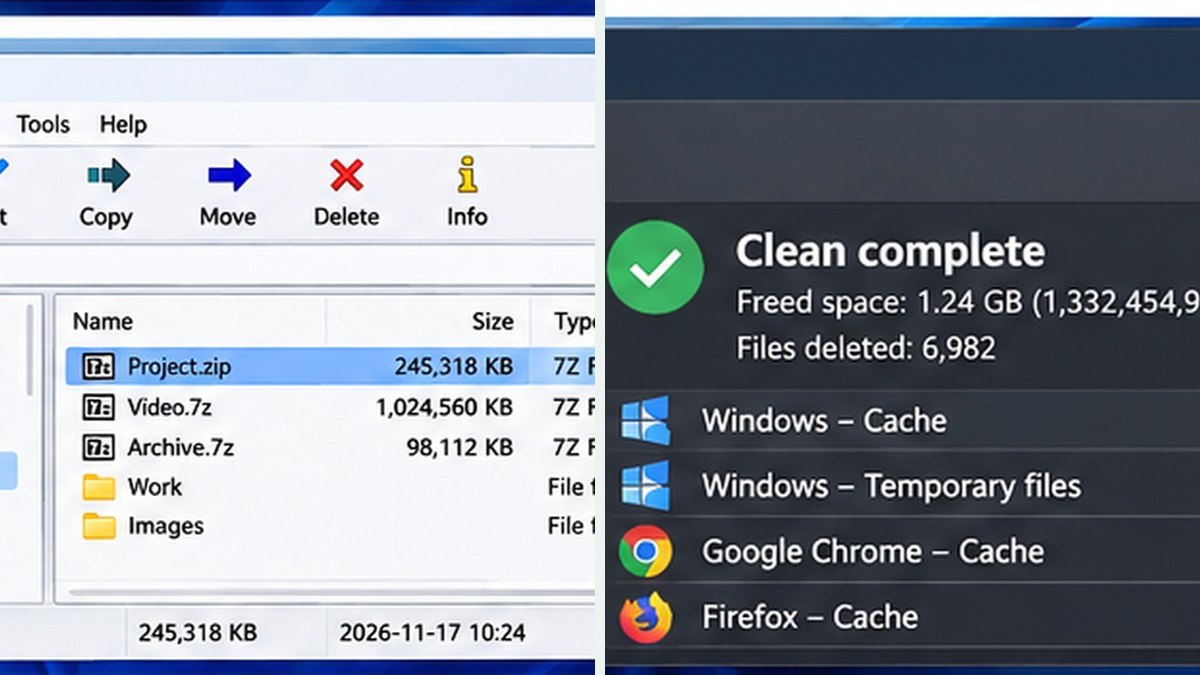
Original editorial artwork for Trebuchet. This is an illustration, not a screenshot of the software.
Editorial overview: This article is based on public product documentation and published capabilities, not hands-on benchmark testing. Features and licensing may change; verify details with each publisher.
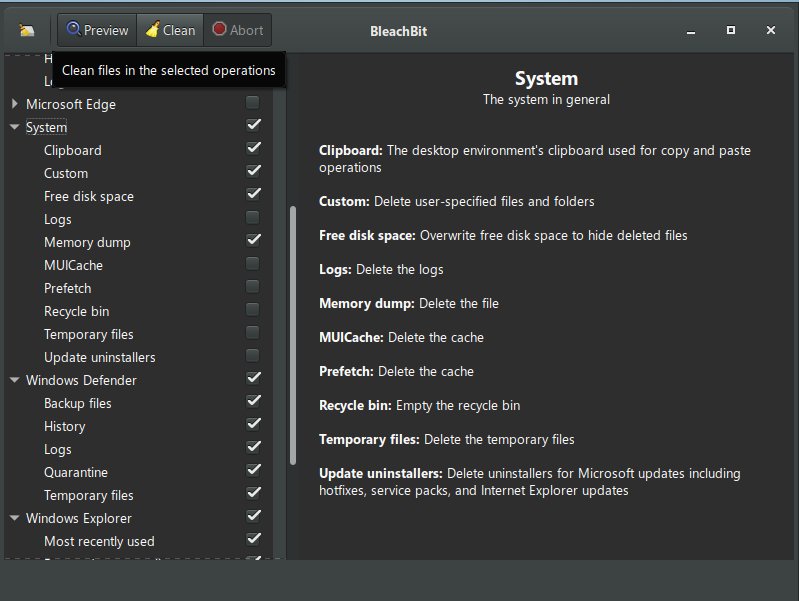
Interface reference · View source and context. Screenshot may show an older version; interface details can change.
The difference at a glance
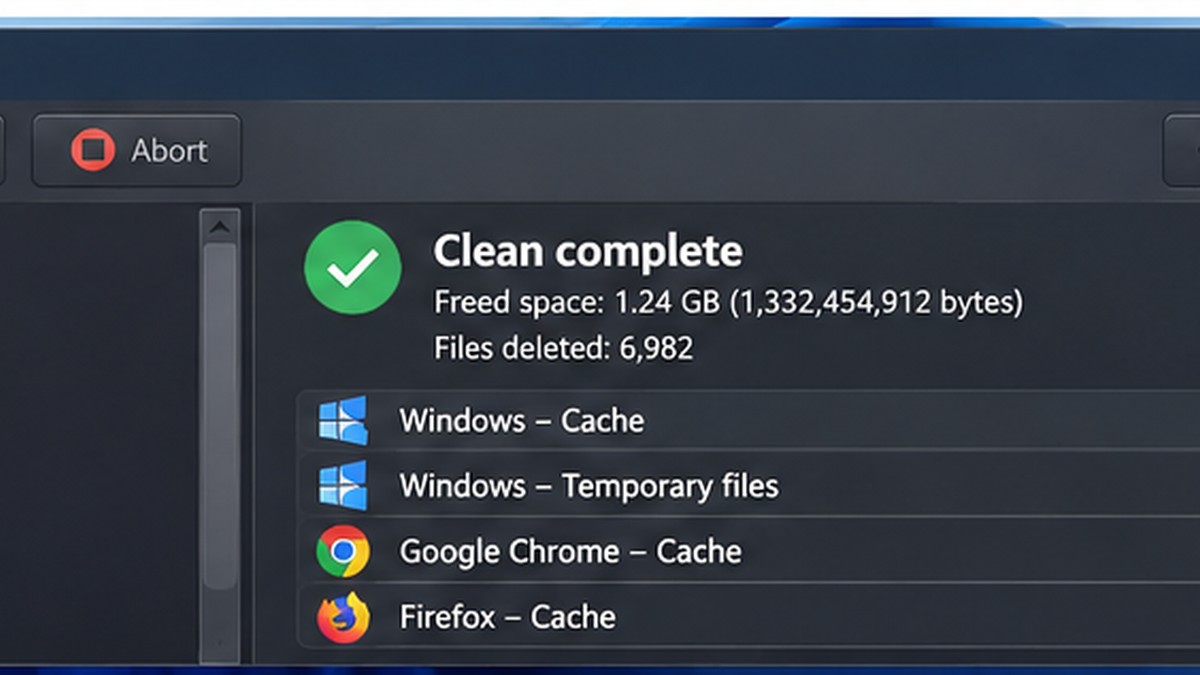
Editorial interface illustration (AI-generated); appearance may differ from current software versions.
BleachBit is a free, open-source cleanup utility focused on removing selected temporary data. CCleaner offers free and commercial editions with features that vary by version and plan. Compare actual cleanup controls, not marketing claims about instant speed boosts.
What cleanup can do
Editorial interface illustration (AI-generated); appearance may differ from current software versions.
Removing disposable temporary files may recover disk space, but deleting caches can also make apps reload data or sign you out. More space does not automatically mean a computer will run faster.
Safer settings first
Begin with Windows Storage settings and Disk Cleanup where available. If you use a third-party utility, preview selections, avoid deleting data you do not recognize, and back up documents before making large changes.
Privacy and data removal
Clearing application history or browsing traces is not the same as guaranteeing secure erasure of all information. Storage media, sync services, backups and browsers may retain information elsewhere.
Which to use?
BleachBit may appeal to users who prefer an open-source utility with manual control. CCleaner may be worth evaluating if you prefer its particular interface or paid features. Keep either updated and use official sources.
Software safety: Use official publisher websites, check supported operating systems and release notes, and keep a backup of important projects and data.
A closer look: how this fits into everyday work
Features make more sense when you connect them to a familiar task. The following examples focus on ordinary desktop workflows, common points of confusion, and the decisions that are easy to overlook when reading a list of specifications.
What are you actually trying to clean?
BleachBit and CCleaner are often grouped together, yet the decision depends on a much simpler question: are you trying to recover disk space, remove a specific application cache or perform broader Windows maintenance? Both products have changed over time, and available features can depend on version or tier.
Before installing anything, check Storage settings in Windows. That built-in view may already identify a huge Downloads folder or a set of temporary files. No cleaning application needs to be your first step.
Simplicity and control pull in different directions
Some users want a guided cleanup experience; others prefer individual checkboxes and open-source software. Neither philosophy prevents accidental deletion. The safer program is the one whose options you understand, especially when the computer belongs to a family member or a workplace.
A full-screen promise of performance gains is not evidence that a cleaner will improve your particular machine. Evaluate concrete storage results and usability, not dramatic marketing language.
Reader tip: menus, screenshots and exact settings may change between software versions. Check the publisher’s documentation before following a step that affects important files.
Do not confuse cleanup with security
Removing a cache does not remove malware, patch vulnerabilities or secure online accounts. If you suspect infection, use trusted security tools and proper recovery procedures. If you are short on disk space, inspect what is consuming that space before deleting data indiscriminately.
Be careful with claims about permanent deletion. Copies can remain in backups, synchronized devices or systems outside your computer.
Our decision framework
Choose based on your tolerance for granular controls, your preference for open-source or commercial software, and the exact cleanup tasks you perform. Check current product documentation, since comparison tables can age quickly.
Above all, back up irreplaceable data. Recovering one lost work document is rarely worth the gigabytes a risky cleaning option might save.
Before you commit important work
Make a small test project with files that are safe to experiment on. Confirm that the result opens, that you understand where it was saved, and that a backup exists for anything irreplaceable. Even popular software can behave differently across Windows versions, hardware configurations and file formats.
Also consider who will receive the result. A technically impressive export is not helpful if a collaborator cannot open it, the text is unreadable or the accounting report does not match the source records. Choose settings and formats with the end user in mind rather than treating the default option as universally correct.
Finally, use the official publisher website for current downloads, release notes and system requirements. This journal links to publishers and reviews software workflows; it does not distribute installers or claim that the applications were benchmarked in our lab.
Trebuchet is an independent informational publication. We are not affiliated with the publishers mentioned and do not host software installers. This article is not a laboratory test or a paid endorsement.