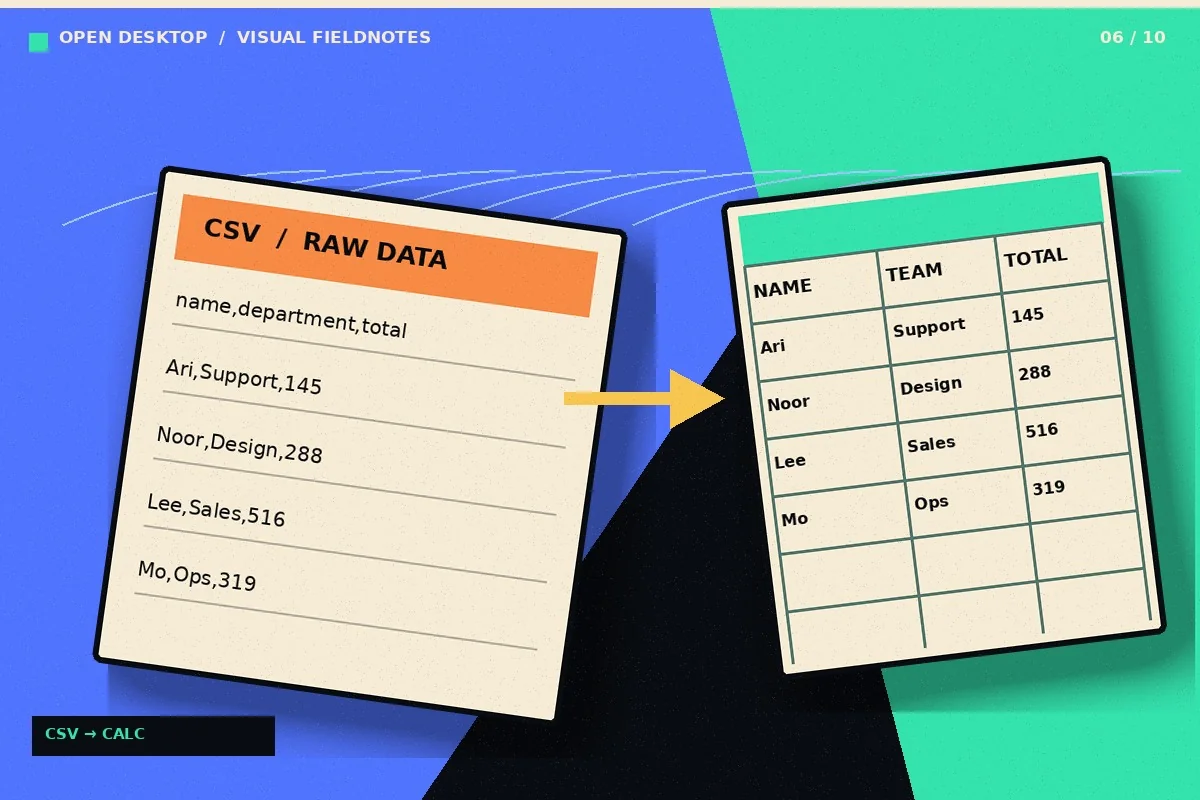
Control separators, encoding, and column types when opening data files in Calc. This tutorial focuses on a repeatable real-world task you can test on a sample file, not an unverified performance claim. LibreOffice is a desktop office suite; application menus and options may differ by operating system and release.
How to do it: a practical workflow
Work on a copy of your files when learning a new application. The sequence below gives you a testable outcome and a way to verify the result.
- Step 1. Open a copy of the CSV and look for the delimiter: comma, semicolon or tab.
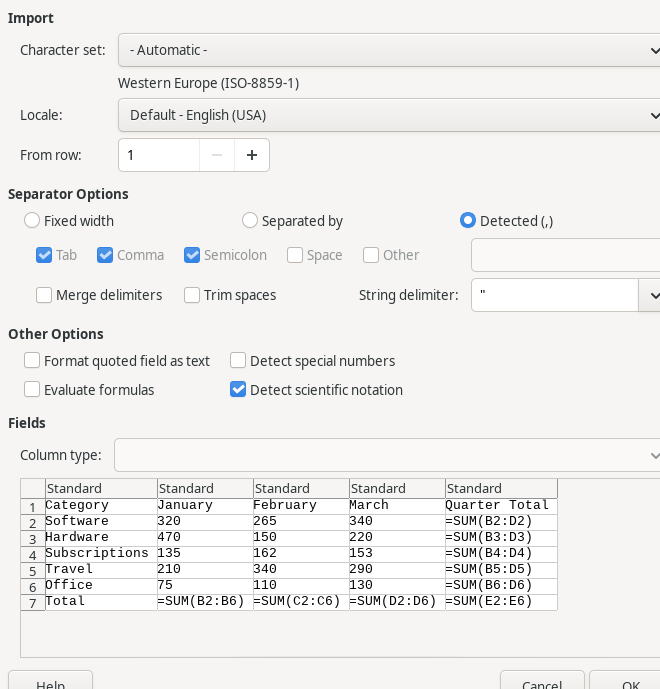
- Step 2. Use the Text Import dialog to select the correct separator and review the live preview.
- Step 3. Choose a suitable character encoding and inspect accented characters or non-Latin names.
- Step 4. Explicitly treat identifiers or ZIP codes as text so leading zeros are preserved.
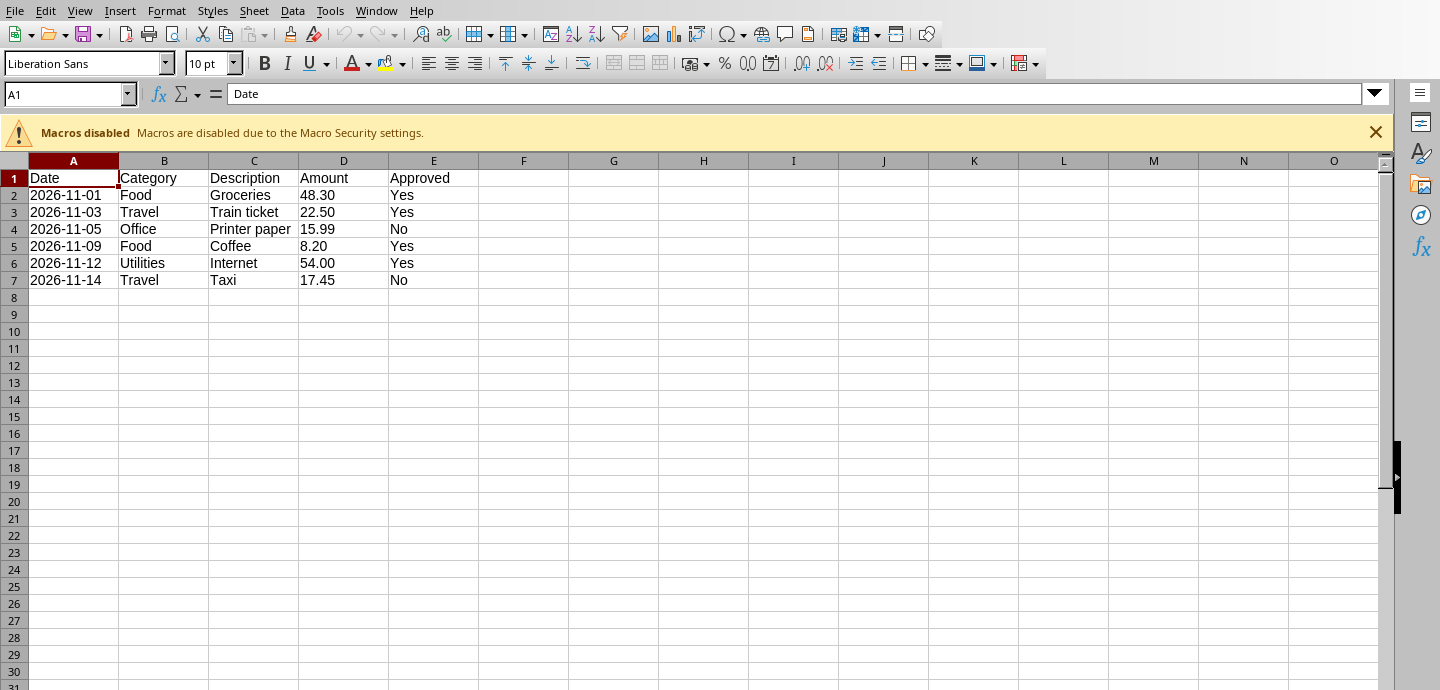
- Step 5. After import, check the row count and totals before converting to ODS for continued work.
Worked example you can recreate
A CSV contains account ID 00125, date 2026-10-01 and amount 19.95. Set the ID column to Text in the import dialog so it does not become 125; then save an ODS working copy and retain the untouched source CSV.
Common problems and what to verify
CSV has no inherent formatting, sheet styles or rich formula metadata. Saving back to CSV can lose information that an ODS keeps.
Before handing a document to someone else, open the output in the format that person will use. Check the content and key calculations rather than relying on an export-success notification.
Quick answer
Why are all CSV values in one column?
The wrong delimiter was selected. Reopen Text Import and choose the separator matching the file.
Official reference and download
These instructions draw on documentation from The Document Foundation. For current user-interface details, refer to the official guide for this topic ↗. Download installation files only from LibreOffice's official download page ↗.
Keep learning
Each of these related guides answers a different task, so you can move from basic setup to a more specific workflow without repeating the same overview.
Independent educational coverage. Trebuchet is not affiliated with or endorsed by The Document Foundation. This article describes documented workflows and illustrative examples; it is not a report of hands-on benchmarking or testing.