Start with three useful formulas and learn how references behave when copied between cells. This tutorial focuses on a repeatable real-world task you can test on a sample file, not an unverified performance claim. LibreOffice is a desktop office suite; application menus and options may differ by operating system and release.
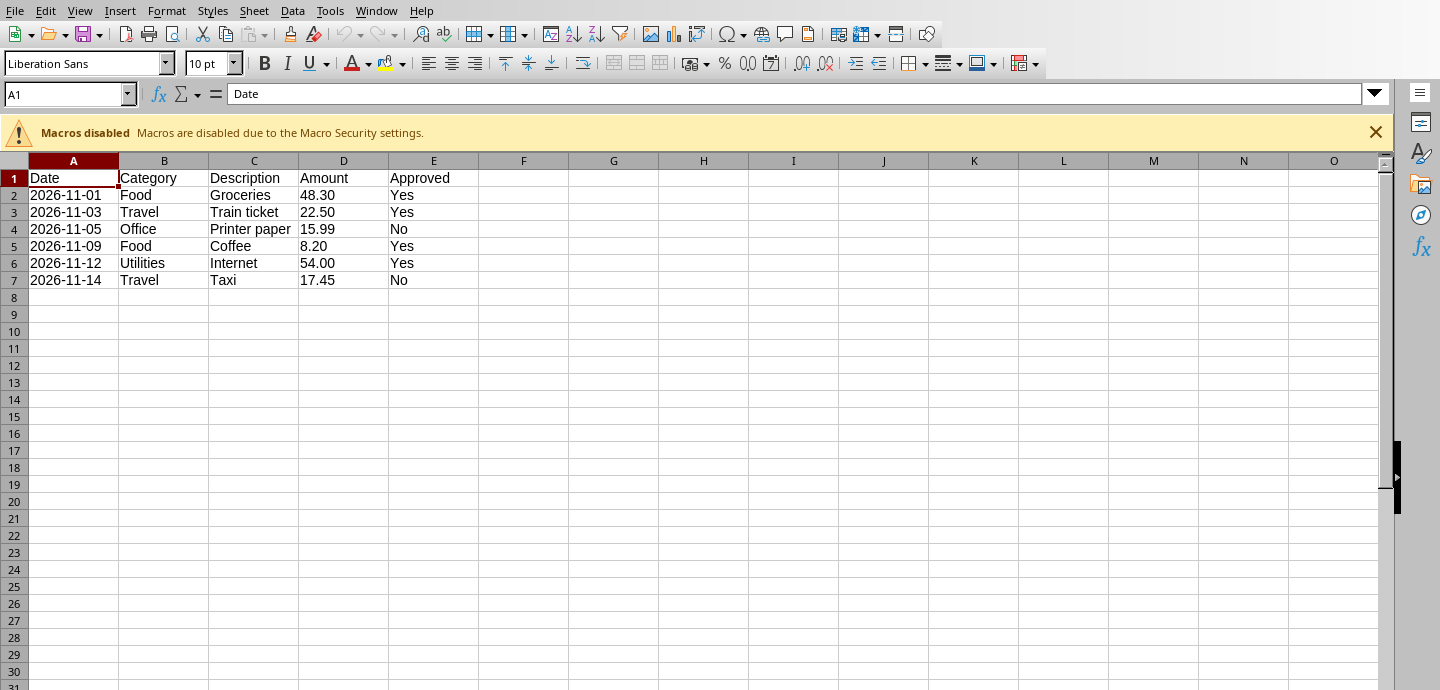
How to do it: a practical workflow
Work on a copy of your files when learning a new application. The sequence below gives you a testable outcome and a way to verify the result.
- Step 1. Create a sheet with columns Description, Units, UnitPrice and Total. Enter a few sample rows.
- Step 2. In Total, multiply the units cell by the price cell. Copy the formula down and verify the cell references adjust as intended.
- Step 3. Use SUM to add a range of totals and AVERAGE to calculate the average of a numeric column.
- Step 4. Use IF for a simple rule such as marking a line “Review” when the amount exceeds a threshold.
- Step 5. Check formula results with a hand-calculated example before relying on the sheet for important decisions.
Worked example you can recreate
If Units is B2 and UnitPrice is C2, place =B2*C2 in D2. For D2:D6, =SUM(D2:D6) adds the five totals. In another column, =IF(D2>100;"Review";"OK") creates a simple threshold flag; argument separators can depend on locale.
Common problems and what to verify
Cells can contain numbers stored as text, breaking arithmetic. Also, some localizations use commas where others use semicolons as formula separators.
Before handing a document to someone else, open the output in the format that person will use. Check the content and key calculations rather than relying on an export-success notification.
Quick answer
Is Calc formula syntax exactly the same as Excel?
Many common functions are similar, but separator conventions and support for certain advanced functions can differ.
Official reference and download
These instructions draw on documentation from The Document Foundation. For current user-interface details, refer to the official guide for this topic ↗. Download installation files only from LibreOffice's official download page ↗.
Keep learning
Each of these related guides answers a different task, so you can move from basic setup to a more specific workflow without repeating the same overview.
Independent educational coverage. Trebuchet is not affiliated with or endorsed by The Document Foundation. This article describes documented workflows and illustrative examples; it is not a report of hands-on benchmarking or testing.