Free Screen Recording Software for PC: What to Look For
A practical checklist for choosing screen recording tools, with OBS Studio as an example.
By Trebuchet Editorial Desk··Editorial guide
Original editorial artwork for Trebuchet. This is an illustration, not a screenshot of the software.
Editorial overview: This article is based on public product documentation and published capabilities, not hands-on benchmark testing. Features and licensing may change; verify details with each publisher.
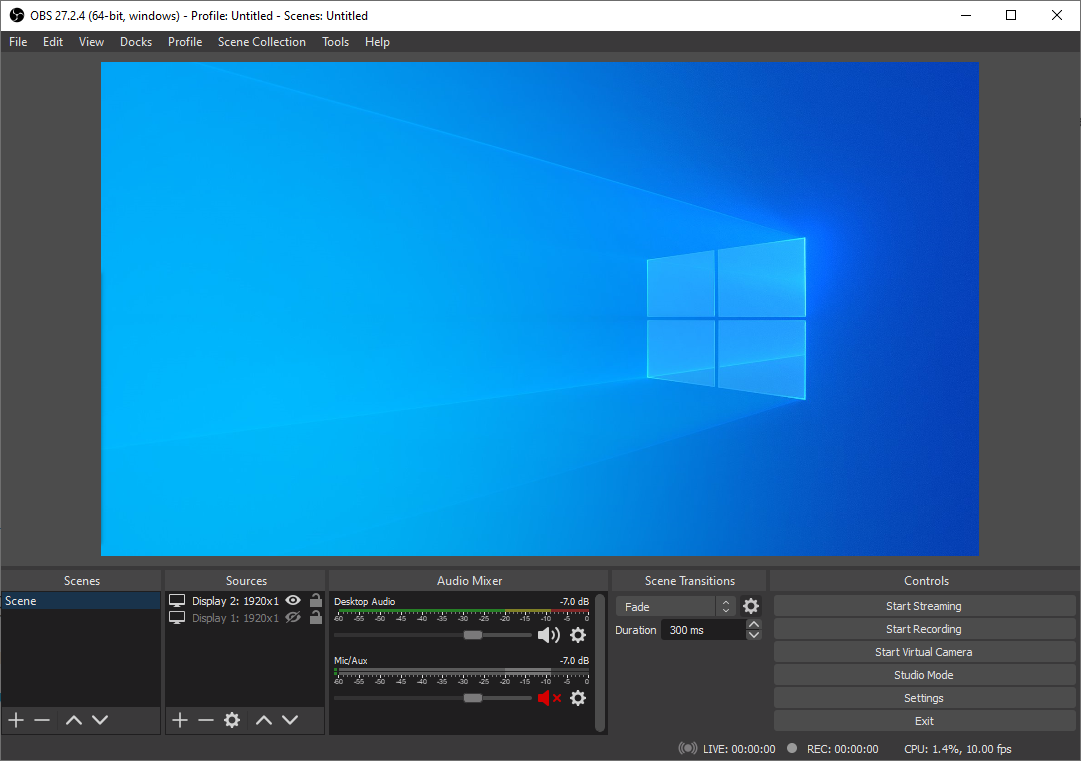
Interface reference · View source and context. Screenshot may show an older version; interface details can change.
Your recording needs determine the tool
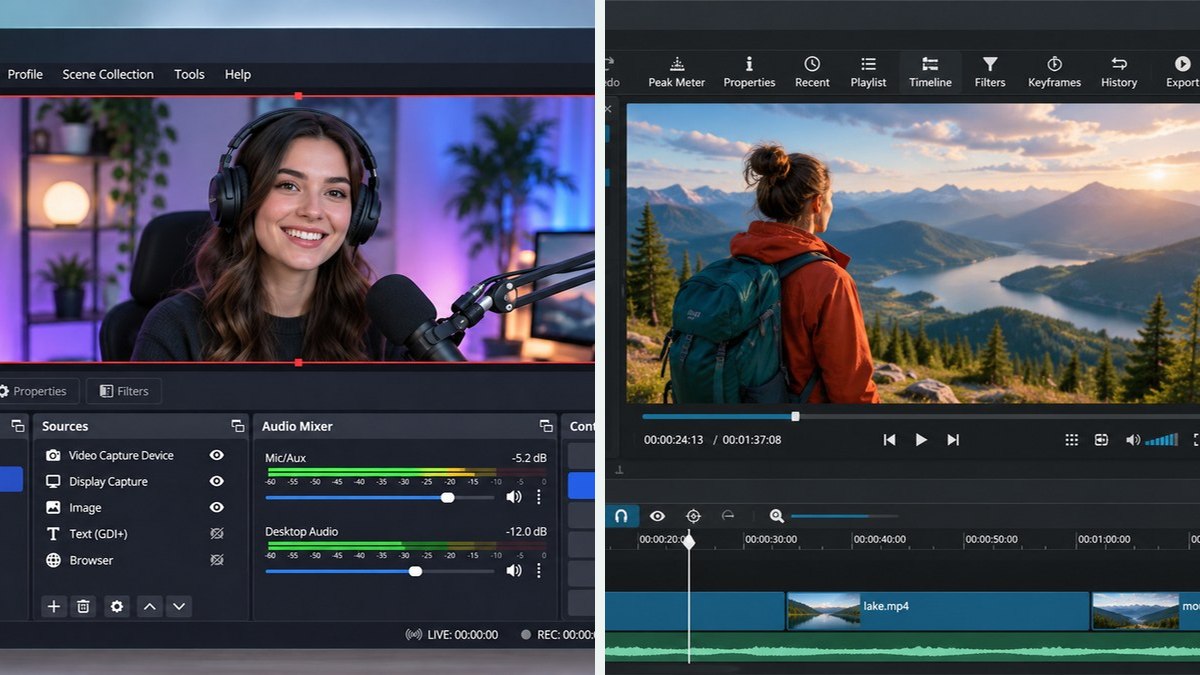
Editorial interface illustration (AI-generated); appearance may differ from current software versions.
For tutorials, you may need a microphone, webcam overlay, and high-quality capture. For a quick bug report, recording one window may be enough. Choose based on what you actually publish and how comfortable you are configuring settings.
OBS Studio as a flexible option
Editorial interface illustration (AI-generated); appearance may differ from current software versions.
OBS Studio is a free tool with scenes, capture sources, an audio mixer, and live-streaming features. Its flexibility is useful for educators and streamers but can feel more involved than a simple one-click recorder.
Windows built-in choices
Windows also includes screen capture and recording features, although capabilities vary by Windows version and app. Check built-in options before installing extra software.
Recording quality checklist
Verify your microphone level, frame rate, aspect ratio, storage path, and privacy settings. Always preview a short capture before recording a long session.
Software safety: Use official publisher websites, check supported operating systems and release notes, and keep a backup of important projects and data.
A closer look: how this fits into everyday work
Features make more sense when you connect them to a familiar task. The following examples focus on ordinary desktop workflows, common points of confusion, and the decisions that are easy to overlook when reading a list of specifications.
Not every recording needs a streaming studio
The simplest recording task might be showing a colleague where to click in an application. A more involved project might combine a camera, a game and separate audio sources. OBS Studio can support both, but your setup should match the smaller problem first.
Before choosing a tool, decide whether you need a live stream, a local file or a quick one-time clip. Those are three different experiences. Screen recording software is only valuable when you can reliably locate and play the finished recording.
Readability matters more than effects
Capture a short sample and play it on the kind of device your audience uses. Can the viewer read the menu labels? Is the cursor visible? Can they hear your explanation clearly? A beautiful high-resolution video may still fail if the important text is too small.
For software tutorials, close private tabs and turn off notifications before recording. It takes only a moment to display an email address or confidential file in a screen capture.
Reader tip: menus, screenshots and exact settings may change between software versions. Check the publisher’s documentation before following a step that affects important files.
Audio is half the experience
A good microphone and quiet room can matter more than an extra visual effect. Keep your mouth a consistent distance from the microphone and monitor levels before beginning. If you record system sound as well, test whether it overwhelms your voice.
One useful habit is to make a short test recording at the beginning of every session. Settings, devices and permissions can change between days, even when you believe your configuration is unchanged.
When an editor enters the picture
Once captured, many recordings benefit from modest editing: removing a long pause, cropping an irrelevant edge or adding a title. OpenShot and Shotcut can handle that later. Trying to perform all your editing inside a capture workflow often complicates things.
The workflow should be easy enough to repeat next week without re-learning everything. That is a better sign of a good setup than a large collection of plugins.
Before you commit important work
Make a small test project with files that are safe to experiment on. Confirm that the result opens, that you understand where it was saved, and that a backup exists for anything irreplaceable. Even popular software can behave differently across Windows versions, hardware configurations and file formats.
Also consider who will receive the result. A technically impressive export is not helpful if a collaborator cannot open it, the text is unreadable or the accounting report does not match the source records. Choose settings and formats with the end user in mind rather than treating the default option as universally correct.
Finally, use the official publisher website for current downloads, release notes and system requirements. This journal links to publishers and reviews software workflows; it does not distribute installers or claim that the applications were benchmarked in our lab.
Trebuchet is an independent informational publication. We are not affiliated with the publishers mentioned and do not host software installers. This article is not a laboratory test or a paid endorsement.