LibreOffice Calc: A Practical Guide to Free Spreadsheets
Learn how Calc handles formulas, worksheets, file compatibility, and everyday Excel alternatives.
By Trebuchet Editorial Desk··Editorial guide
Original editorial artwork for Trebuchet. This is an illustration, not a screenshot of the software.
Editorial overview: This article is based on public product documentation and published capabilities, not hands-on benchmark testing. Features and licensing may change; verify details with each publisher.
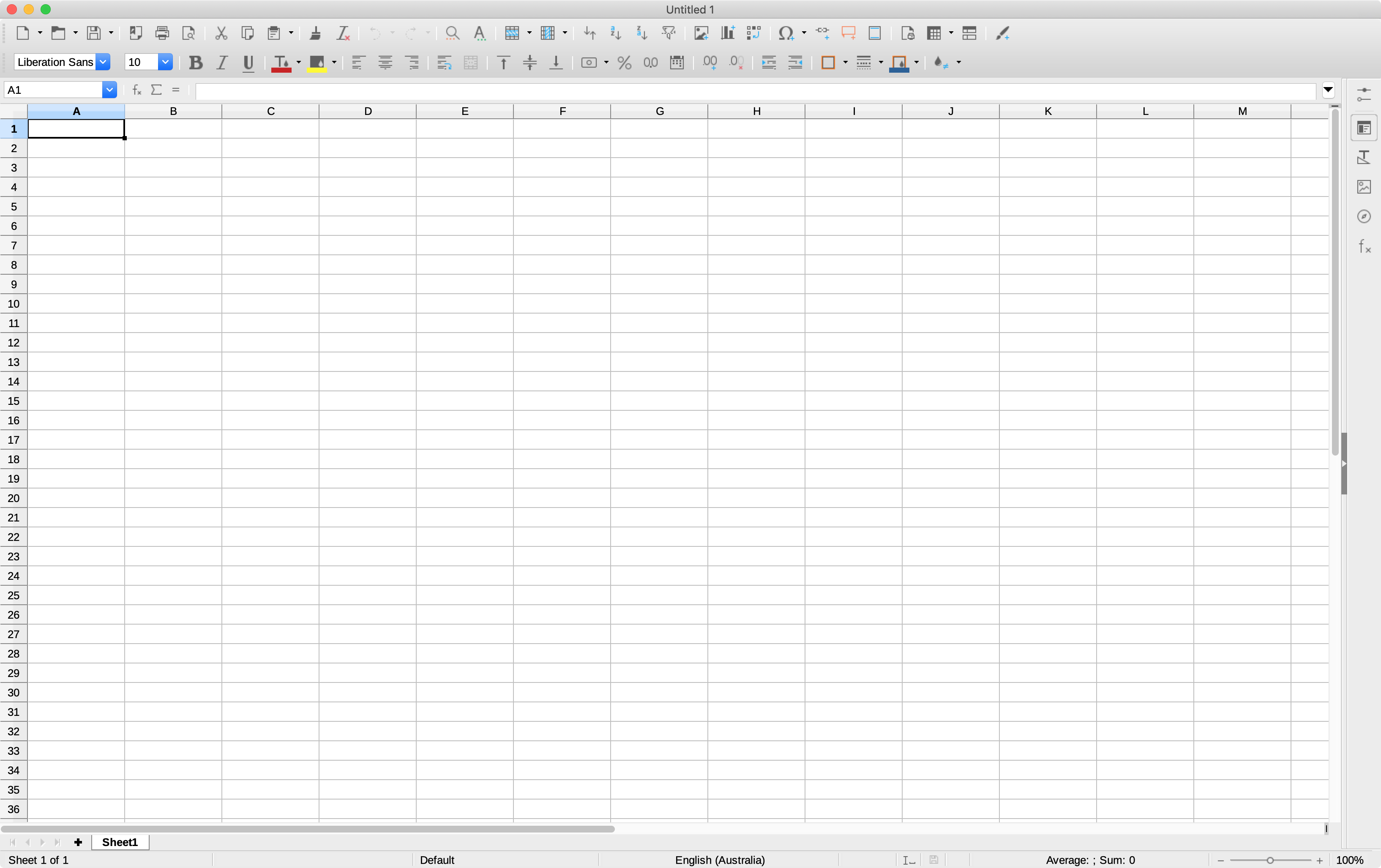
Interface reference · View source and context. Screenshot may show an older version; interface details can change.
What is LibreOffice Calc?
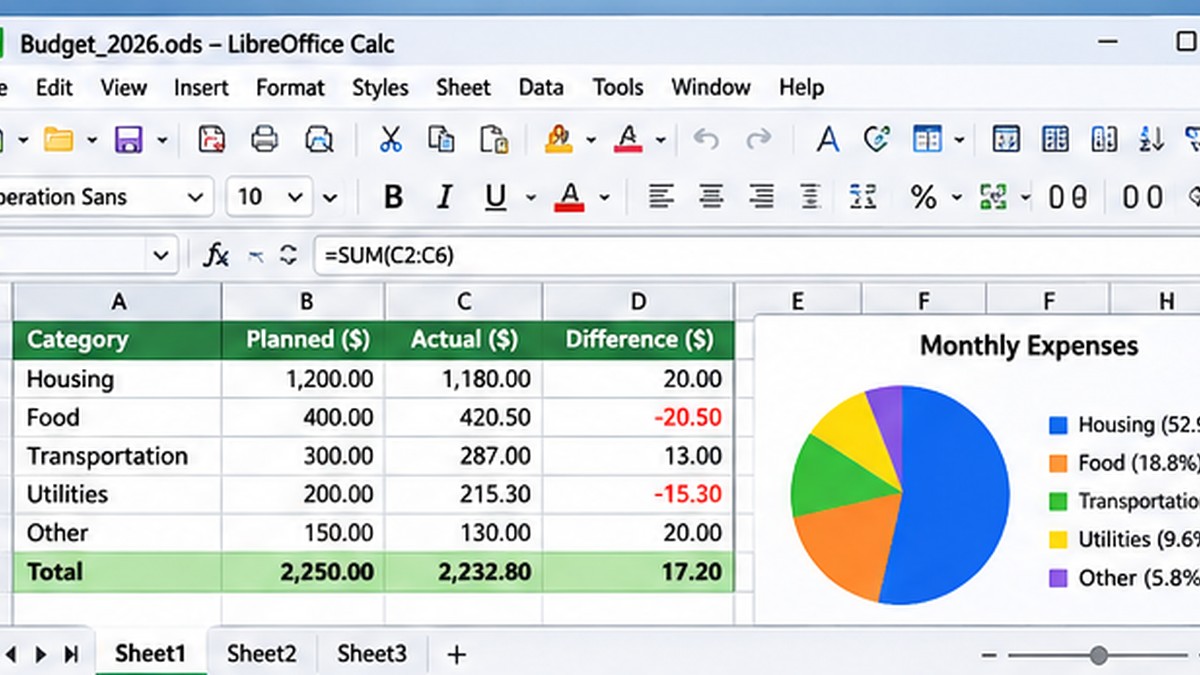
Editorial interface illustration (AI-generated); appearance may differ from current software versions.
Calc is the spreadsheet application in LibreOffice, a free office suite available for Windows. It works well for budgets, tables, formulas, filtering, simple charts, and many common personal and business spreadsheets.
Build your first spreadsheet
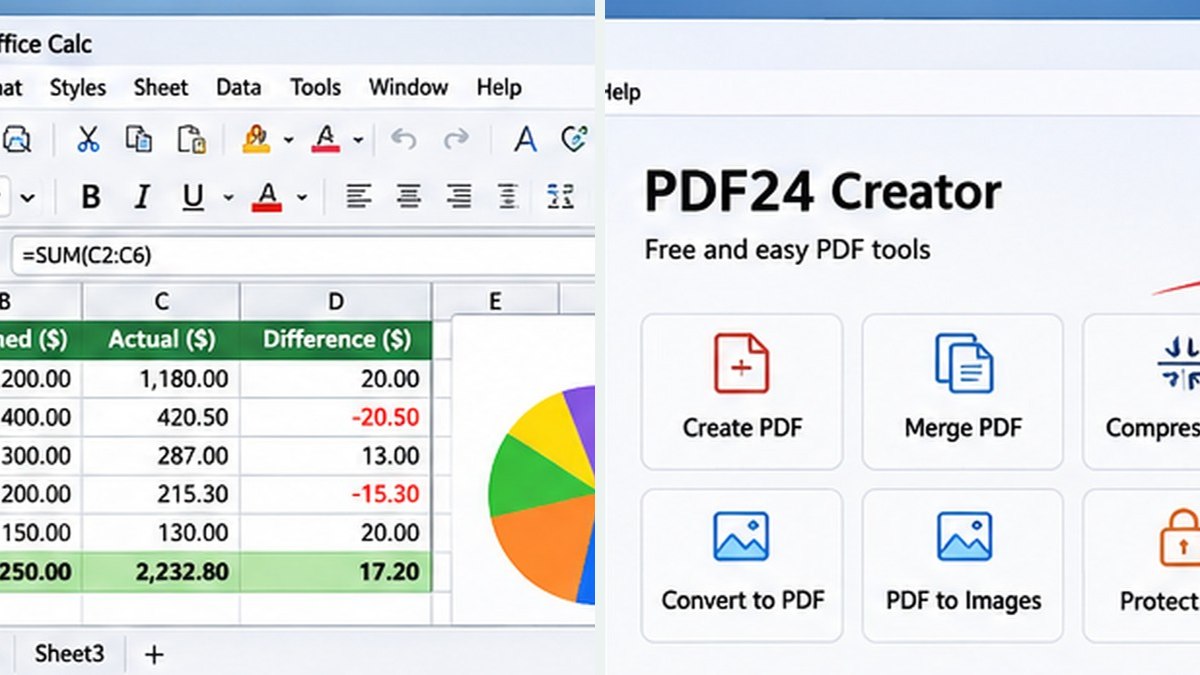
Editorial interface illustration (AI-generated); appearance may differ from current software versions.
Create a workbook, label columns clearly, enter a few rows of numbers, and use a basic SUM formula to total them. Add number formatting for currency or dates. Save a working copy before importing data from another format.
Working with Microsoft Excel files
Calc can open and save XLSX documents, but complex macros, external connections, and specialized formatting can behave differently from Microsoft Excel. If a workbook is shared with an Excel-heavy team, test important formulas and formatting before using it in a critical workflow.
Charts, sorting and filters
For analysis, create a clean header row, apply a data filter, and build a simple chart from a selected range. Keep a separate unmodified copy of imported financial data so you can check the results.
When Calc is a good fit
Calc is an accessible choice for home budgeting, small data lists, teaching, and lightweight office tasks. Teams relying on complex Excel-only add-ins or VBA should evaluate compatibility first.
Software safety: Use official publisher websites, check supported operating systems and release notes, and keep a backup of important projects and data.
A closer look: how this fits into everyday work
Features make more sense when you connect them to a familiar task. The following examples focus on ordinary desktop workflows, common points of confusion, and the decisions that are easy to overlook when reading a list of specifications.
Build a small sheet that matters
The quickest way to understand Calc is to make a spreadsheet you would otherwise keep in a notebook. Create columns for Date, Description, Category and Amount. Enter ten ordinary expenses, then use a SUM formula to calculate the total. This simple exercise teaches cell references, formatting and the basic rhythm of working in rows and columns.
Once you can trust the total, add a category summary. A household budget is enough; you do not need a complicated business model to see why formulas are more useful than calculating numbers manually.
Formulas are easier when you name the question
Rather than memorizing dozens of functions, ask what you want the sheet to answer. How much did I spend? Use SUM. How many purchases did I make? Use COUNT or COUNTA according to the data. Which transactions belong to groceries? Learn filtering before building a complex formula.
As the sheet grows, separate raw data from summary calculations. That keeps the original entries available when you need to correct an error or explain where a number came from.
Reader tip: menus, screenshots and exact settings may change between software versions. Check the publisher’s documentation before following a step that affects important files.
Formatting for another human
A spreadsheet that makes sense only to its creator becomes difficult to maintain. Use a clear header row, consistent currency formatting and a sensible width for description columns. Avoid coloring every other cell with a different shade simply because the options exist.
Before sharing the file, sort or filter it and confirm that the headers still describe the correct columns. A beautifully formatted sheet with a shifted formula is still a broken sheet.
Sharing with Excel users
Calc supports common spreadsheet formats, but some Excel workflows rely on macros, specialized functions or formatting that may not transfer perfectly. Save a copy in the requested format, reopen it and examine a few representative formulas and charts. For a read-only result, PDF export is often safer.
If the spreadsheet will be updated collaboratively, agree on who edits the source copy. Local files are straightforward to own, but multiple people can accidentally create conflicting versions.
Before you commit important work
Make a small test project with files that are safe to experiment on. Confirm that the result opens, that you understand where it was saved, and that a backup exists for anything irreplaceable. Even popular software can behave differently across Windows versions, hardware configurations and file formats.
Also consider who will receive the result. A technically impressive export is not helpful if a collaborator cannot open it, the text is unreadable or the accounting report does not match the source records. Choose settings and formats with the end user in mind rather than treating the default option as universally correct.
Finally, use the official publisher website for current downloads, release notes and system requirements. This journal links to publishers and reviews software workflows; it does not distribute installers or claim that the applications were benchmarked in our lab.
Trebuchet is an independent informational publication. We are not affiliated with the publishers mentioned and do not host software installers. This article is not a laboratory test or a paid endorsement.
Continue with focused LibreOffice tutorials
Our new LibreOffice library breaks broad reviews into individual, testable tasks with worked examples and official sources.