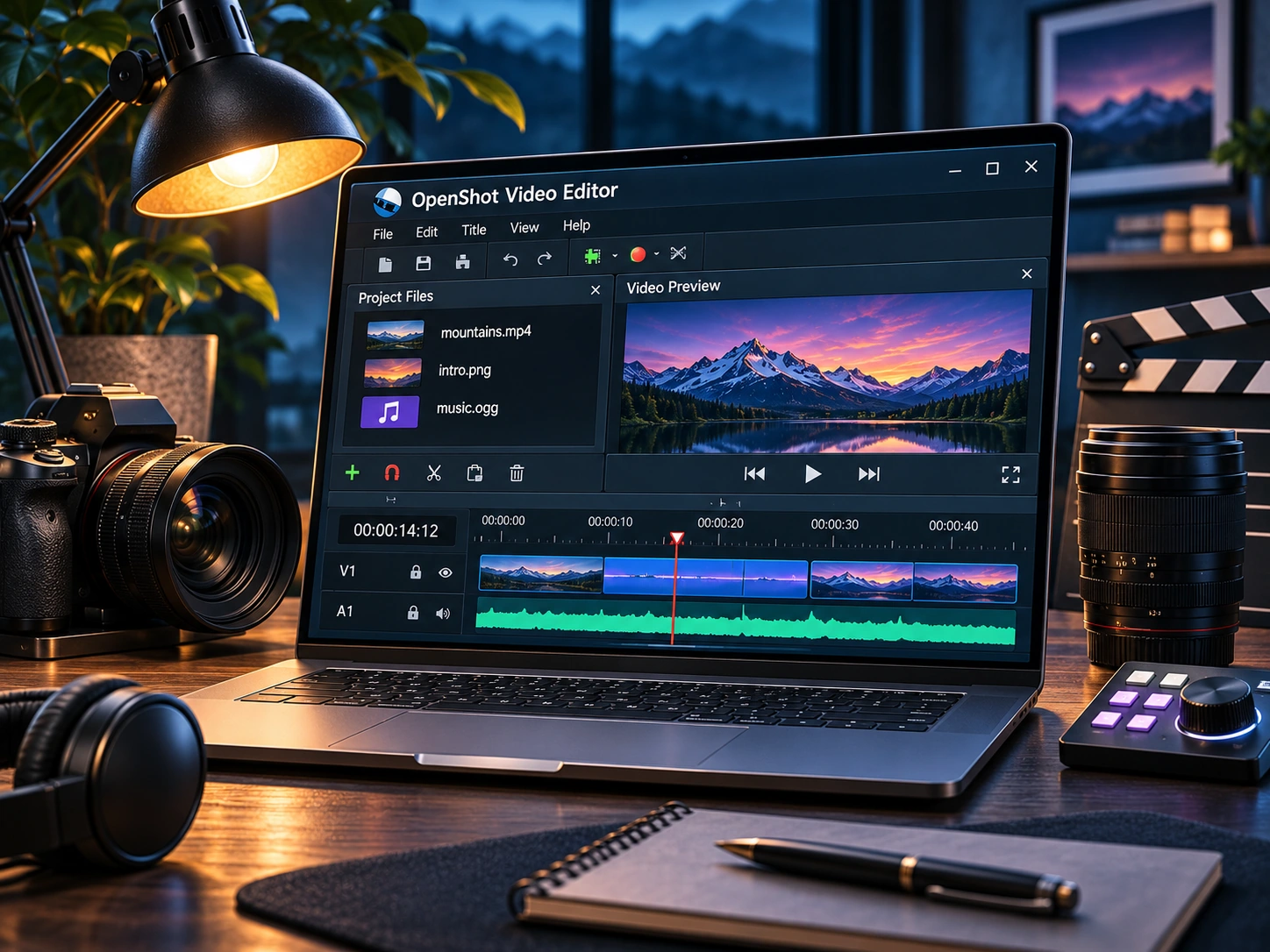
An unfamiliar video editor can look complicated even when the task is simple. To learn OpenShot, start with one goal: turn a handful of short clips into a 30-second video that you can confidently send to someone else.
OpenShot is a free and open-source video editor built around a multitrack timeline. Import your footage, arrange its order, trim unwanted moments and add sound or titles on separate tracks. These basics are the most useful things to understand before exploring effects.
1. Learn the four areas of the workspace
At first, ignore most of the buttons. Focus on the Project Files panel, where imported media appears; the Preview, where you review the current frame; the Timeline, where clips are arranged; and Properties, where selected items can be adjusted. The main window can be reorganized into different views, so your screen may look different.
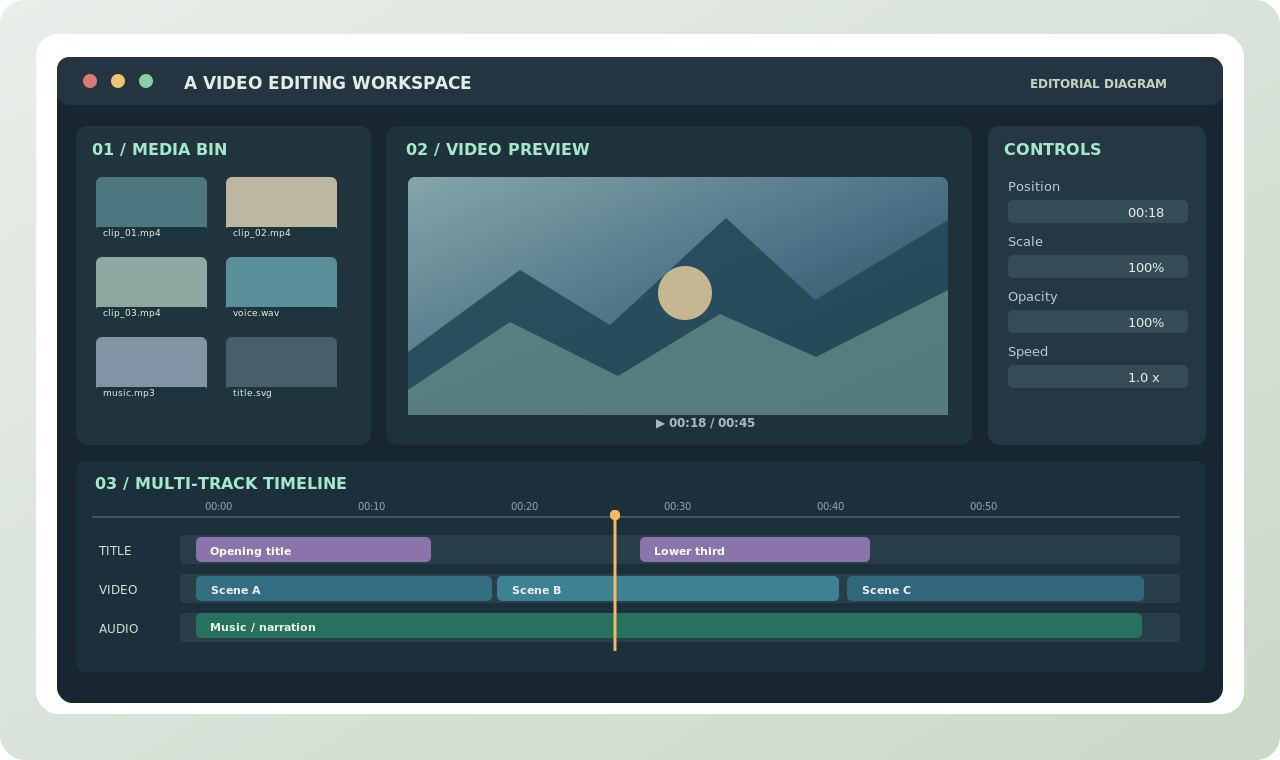
Real projects may include many docks and controls, but the core loop stays the same: import a source, place it on a track, inspect the preview, then adjust the timing.
2. Make a 30-second video from four clips
Choose four short clips from one event — a café visit, a walk, or a screen demonstration. Create a new project, import the files and drag them onto the timeline in the order you want viewers to see them. Leave enough room at the beginning to introduce the topic and at the end to finish deliberately.
Trim the beginnings and endings of shots before trying elaborate transitions. If a clip includes a pause you do not want, split it near the pause and remove that section. Watch the result in the preview to check pacing. Use the playhead to locate the moment where one scene should lead into another.
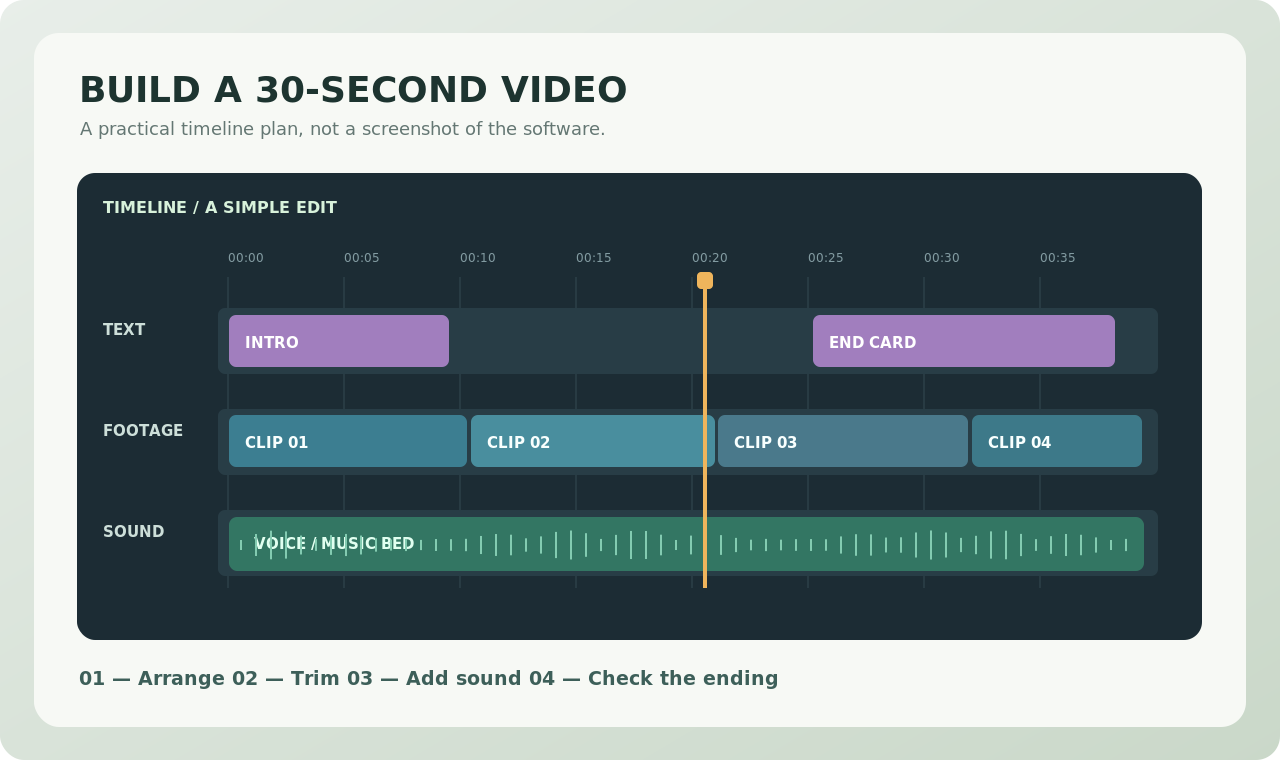
3. Add sound with a purpose
Keep voiceover or music on a separate track so it can be moved without disrupting the visuals. Play a section where speech and music overlap: the voice should remain understandable. A dramatic soundtrack is less valuable than consistent volume and clear dialogue.
If you have recorded sound separately, listen for an abrupt jump at the beginning or end. A brief fade may help, but use your own ears to judge the result. Audio adjustments are easiest to evaluate on headphones.
4. Use titles sparingly
For a short tutorial or travel montage, one opening title and one closing line are often enough. Treat titles as an additional layer that should be legible on a small screen. Preview them in motion and check spelling before exporting.
5. Export a test before rendering the whole project
The project file stores your editing decisions; the exported video is the file people can actually play. Choose a destination you will remember, a descriptive filename and output settings suited to the place you will share the result. Do not assume the largest resolution is always preferable: source quality, playback compatibility and file size all matter.
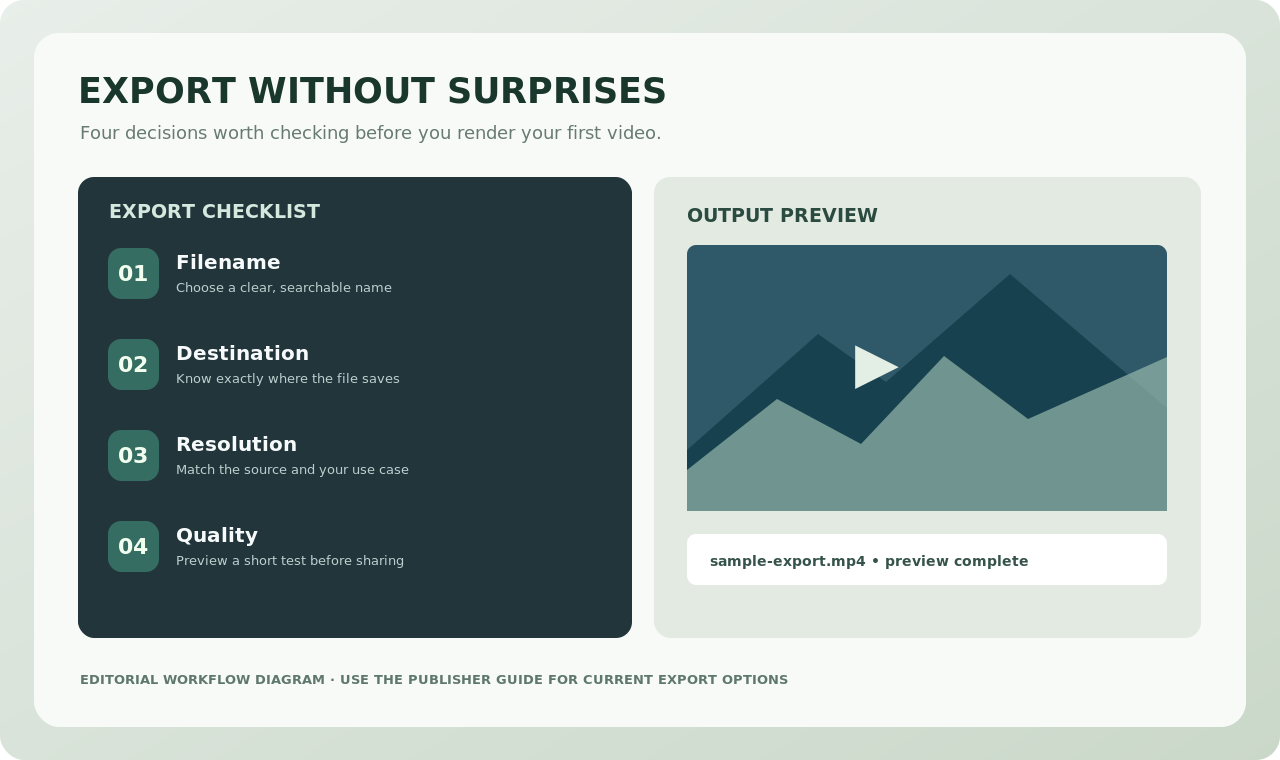
Watch the resulting file from beginning to end. Check that sound is audible, titles stay on screen long enough, and no black or frozen frames have slipped into the cut. Exporting a short draft early is the fastest way to discover problems without wasting time on a long render.
What OpenShot does well — and what to check first
OpenShot is a sensible entry point for uncomplicated editing: basic sequencing, title overlays, transitions and layered audio. Its appeal is not that it does everything, but that a newcomer can see the structure of a video on a timeline. Its open-source model also means readers can review the project and community resources.
Long, effects-heavy projects may require more patience and memory. If you work with demanding footage, variable frame-rate phone recordings or unusual codecs, try representative clips before choosing an editor for a large job. This guide has not benchmarked speed or stability on particular hardware.
Is OpenShot better than Shotcut?
Not automatically. OpenShot may feel more direct for a simple sequence, while Shotcut may suit someone who enjoys exploring filters and a configurable editing workflow. The best test is the same thirty-second project in both applications. Compare how easy it is to find the commands you need, not the length of a feature list.
Read our OpenShot vs Shotcut comparison or the free editing software overview for a broader decision framework.
Where to learn more
Use the official OpenShot website for current downloads and product information, and the OpenShot user guide for updated tools, interface screenshots and platform-specific instructions. Trebuchet is an independent publication; it does not distribute OpenShot installers.